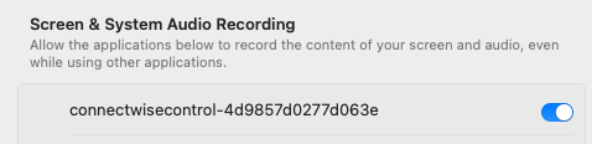
Turn the switch ON
System Settings opens to Privacy & Security → Screen & System Audio Recording. Turn the connectwisecontrol switch ON. Administrator access is not required here.

macOS Deployment Guide
Follow three quick steps to finish installing and approving your remote support agent on macOS. Select the agent that was installed on your Mac to see the matching instructions.
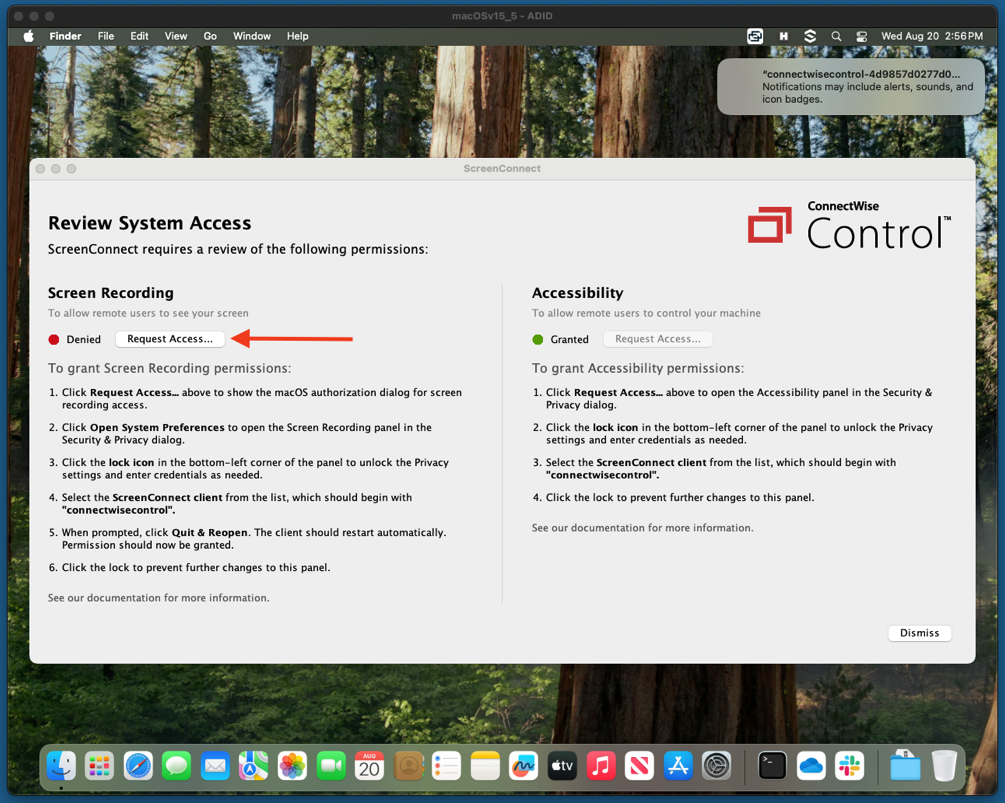
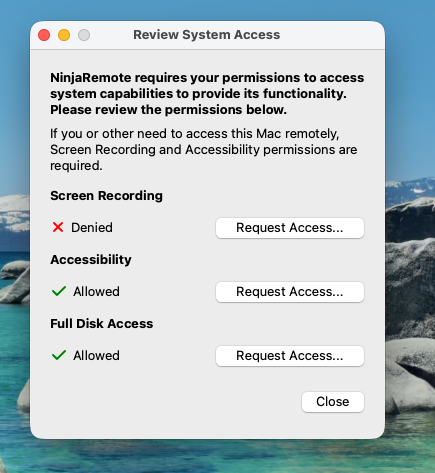
This window is the ScreenConnect Review System Access panel. It checks the two permissions the agent needs to run.
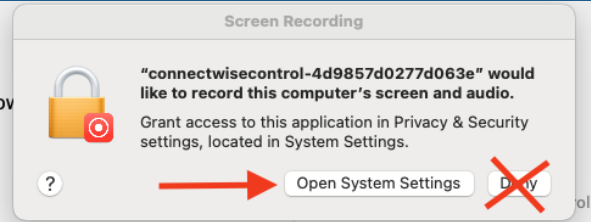
Do not click Deny. Denying will only cause issues with the Help Desk being able to support you. Any screensharing connection we make must be approved by you — you are always alerted before a session begins.
System Settings opens to Privacy & Security → Screen & System Audio Recording. Turn the connectwisecontrol switch ON. Administrator access is not required here.
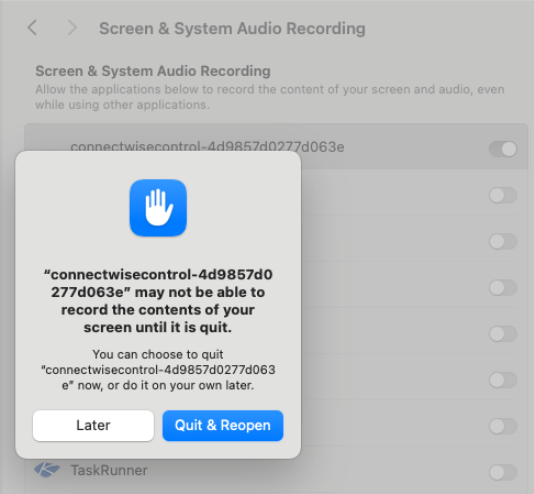
You'll be prompted to relaunch ConnectWise Control. Go ahead and click Quit & Reopen — the client restarts automatically.
You can now close any related windows or notifications. Here are a few things to expect from here on.

The agent places a small icon in your menu bar, shown here.
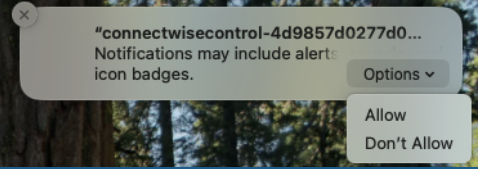
If asked to enable notifications, choose Allow.
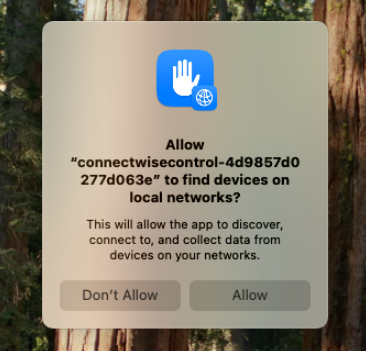
A later prompt may ask to find devices on local networks — please Allow.

When the Help Desk connects, this approval prompt appears before your screen is ever shared.
Good to know: your desktop image will temporarily turn black while a session is in progress. This is completely normal and reverts automatically once the session ends.
The first time a Helix technician connects, macOS walks you through three quick prompts. Approve each one in order — the whole thing takes under a minute.
When a Helix agent first connects to your Mac, an “Accept connection from: Helix Systems?” prompt appears. You must click “Yes” to proceed — if you click No, the install process stops.
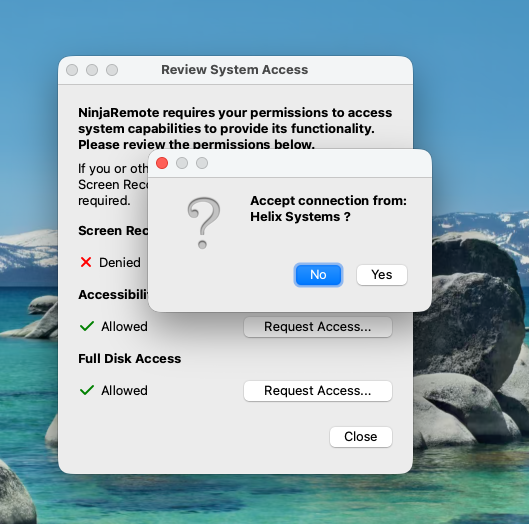
Next, the Review System Access window appears. Under Screen Recording you'll see Denied — click “Request Access…” next to it to proceed.
A third prompt — “ncstreamer” would like to record this computer's screen and audio — will appear, even if System Settings already opened on its own. Click Open System Settings.
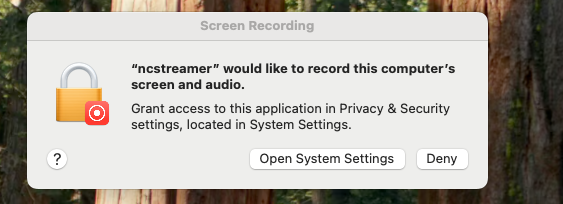
Never click “No” or “Deny” on these prompts. Either one stops the setup and prevents the Help Desk from being able to support you. Any screensharing connection we make must be approved by you — you are always alerted before a session begins.
Administrator access is not required here.
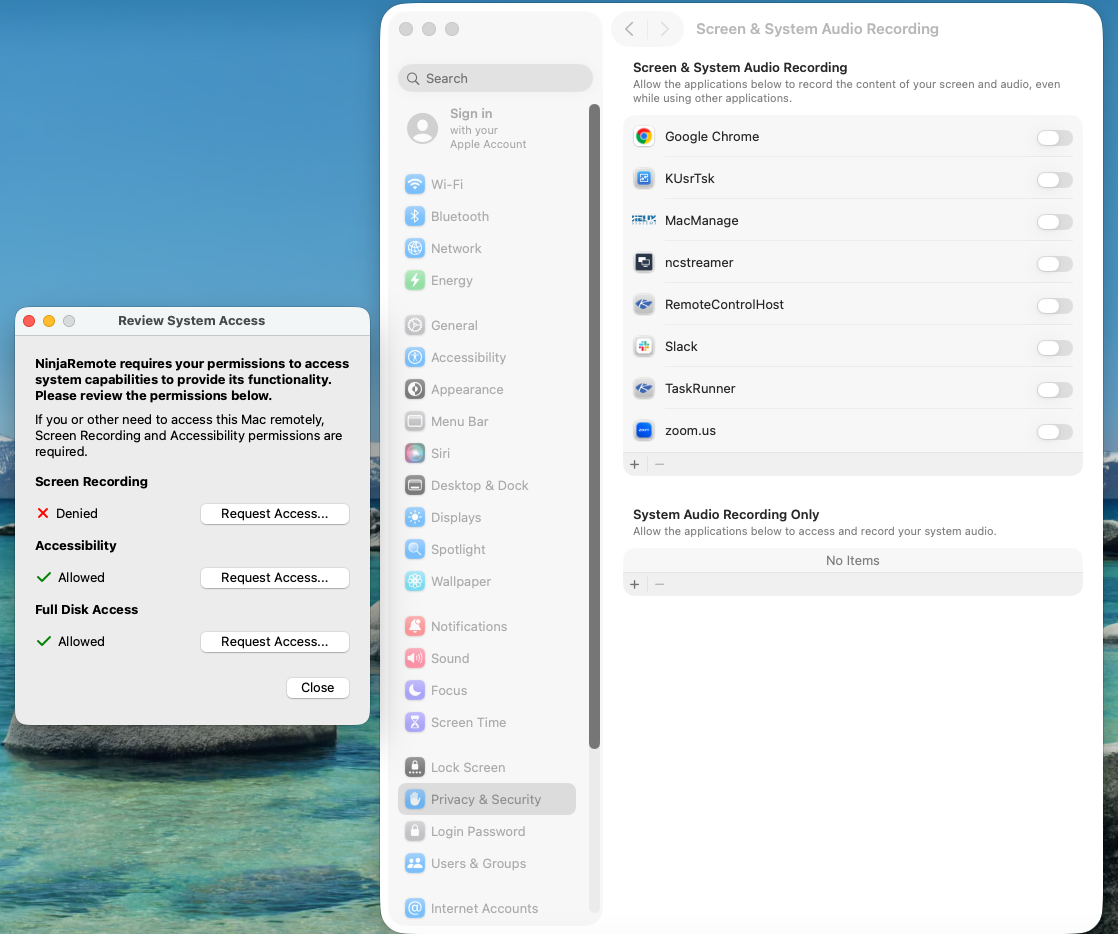
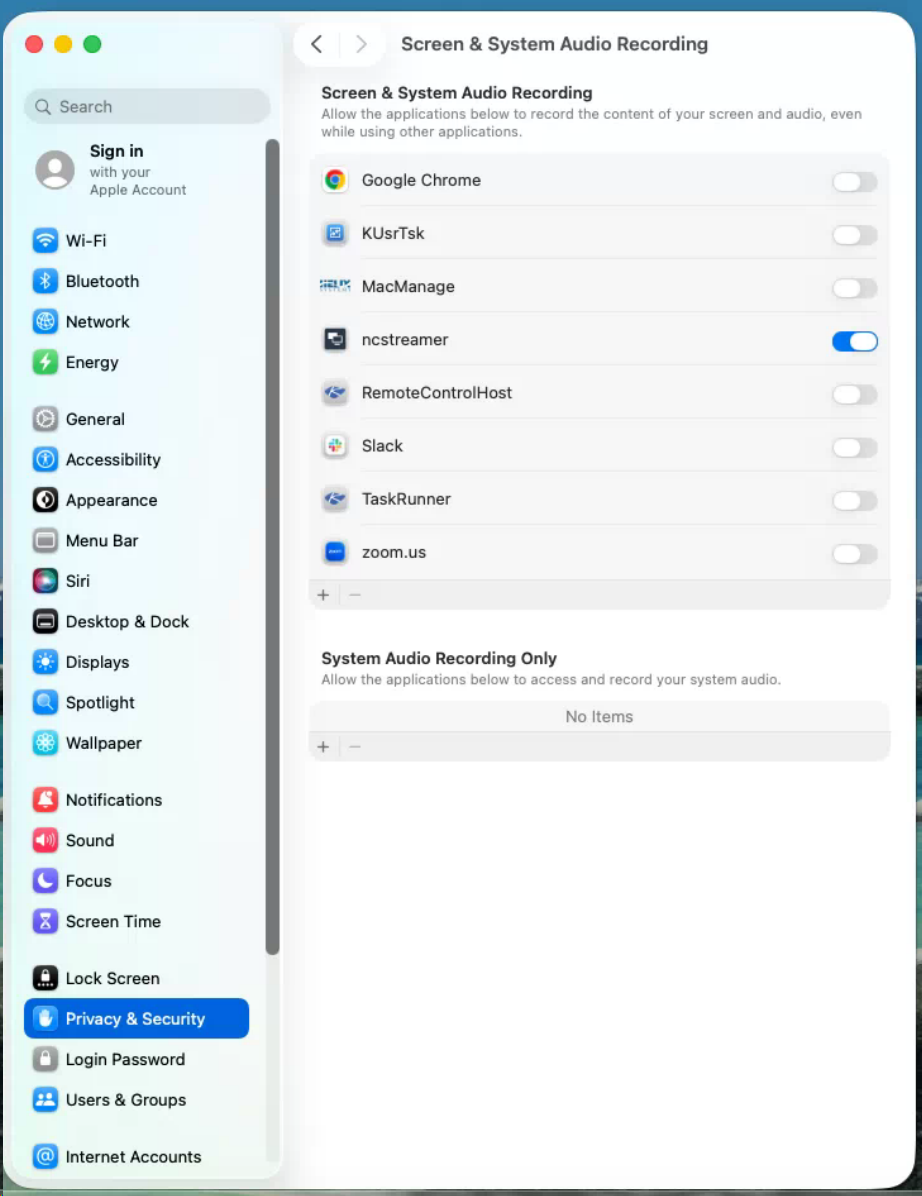
Click the switch next to ncstreamer so it turns ON.
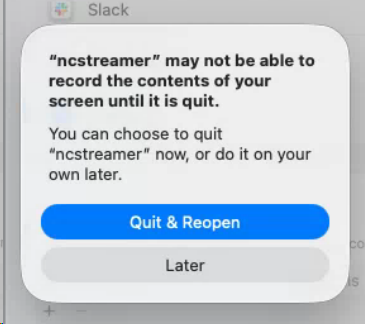
It will prompt to relaunch ncstreamer. Go ahead and click Quit & Reopen — it restarts automatically.
Going forward, whenever the Help Desk connects, the “Accept connection from: Helix Systems?” prompt appears again. Click Yes each time to allow the session.
Around-the-clock support
Contact our 24/7 Help Desk and we'll get you sorted right away.